Actions with rules
Edit rule
This functionality allows you to edit rule configuration. To edit rule configuration, you have to click on rule name to see details and then click on the corresponding step of configuration that you want to edit.
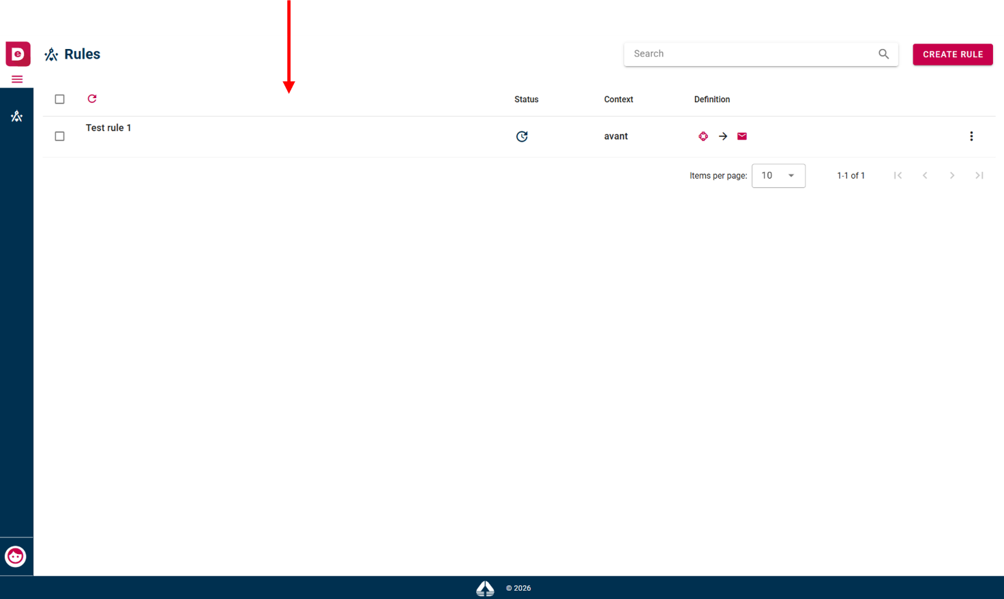 Edit rule
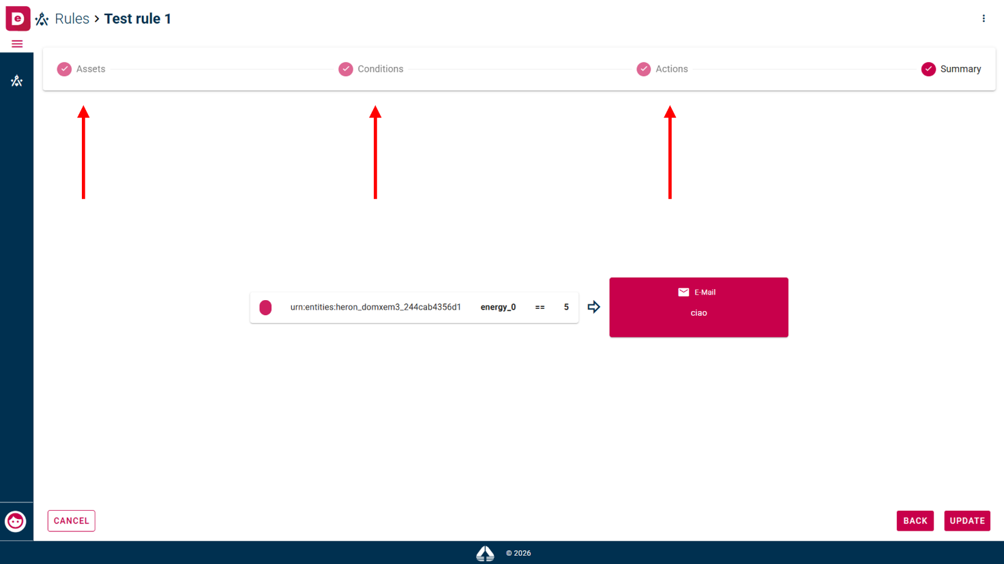 Configuration steps on stepper line
Pause rule
This functionality allows you to pause rule. To pause rule, you have to click on three dot menu in corresponding rule row and then select “Pause” option. If the rule is paused, the action selected by the user will not be performed even when the conditions are triggered.
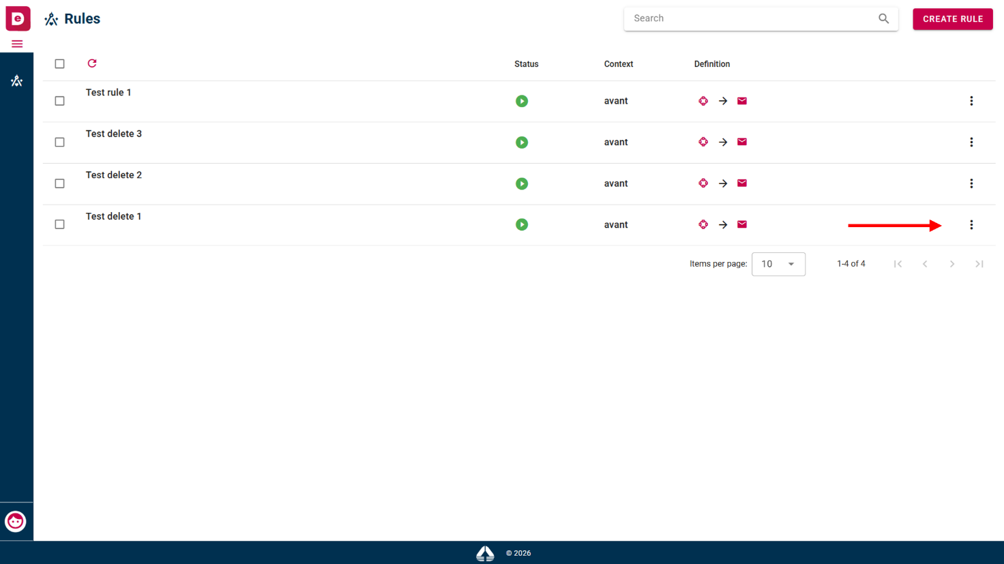 Three dot menu
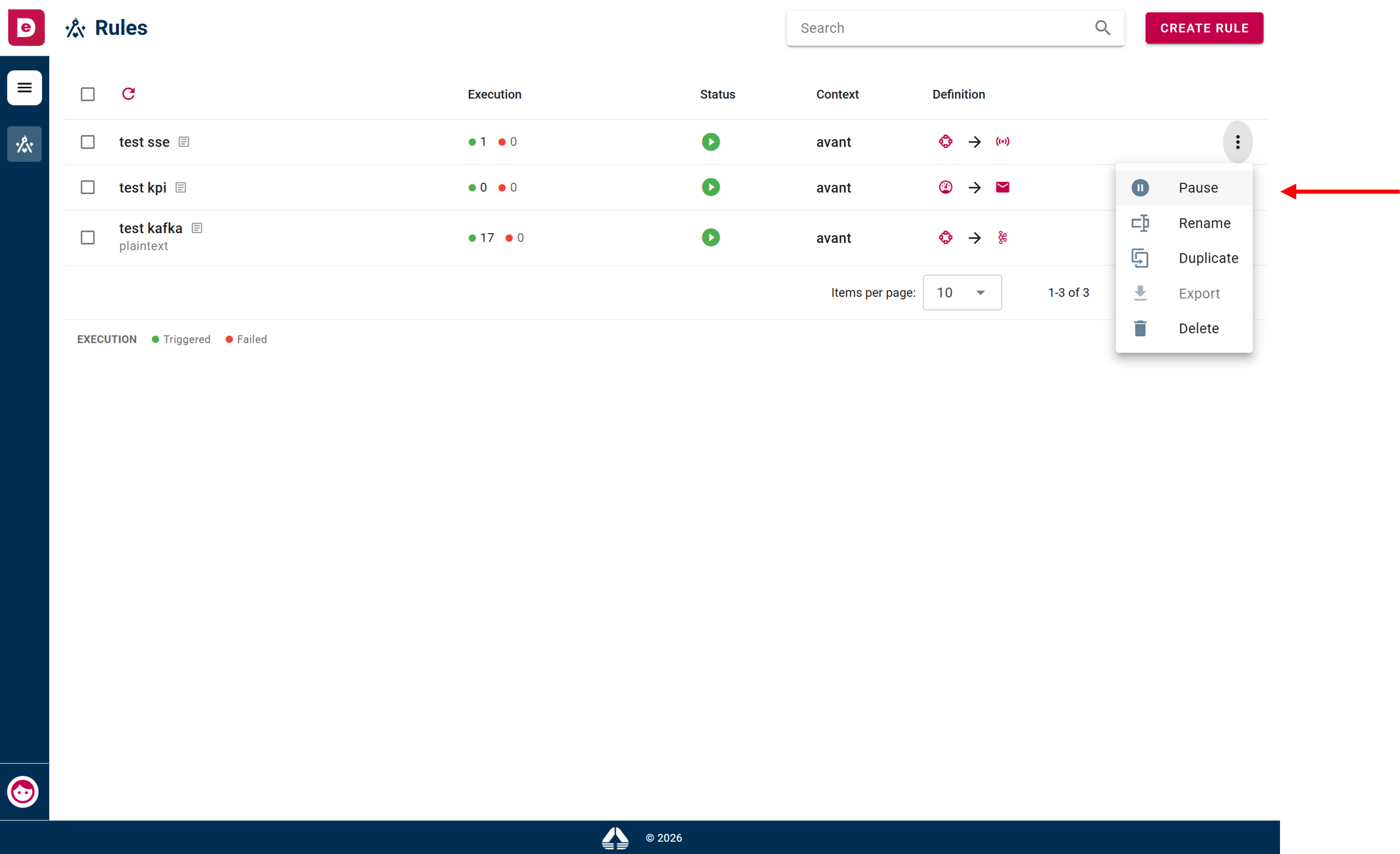 Pause option
Rename rule
This functionality allows you to rename a rule. To rename a rule, you have to click on three dot menu in corresponding rule row and then select “Rename” option.
Three dot menu
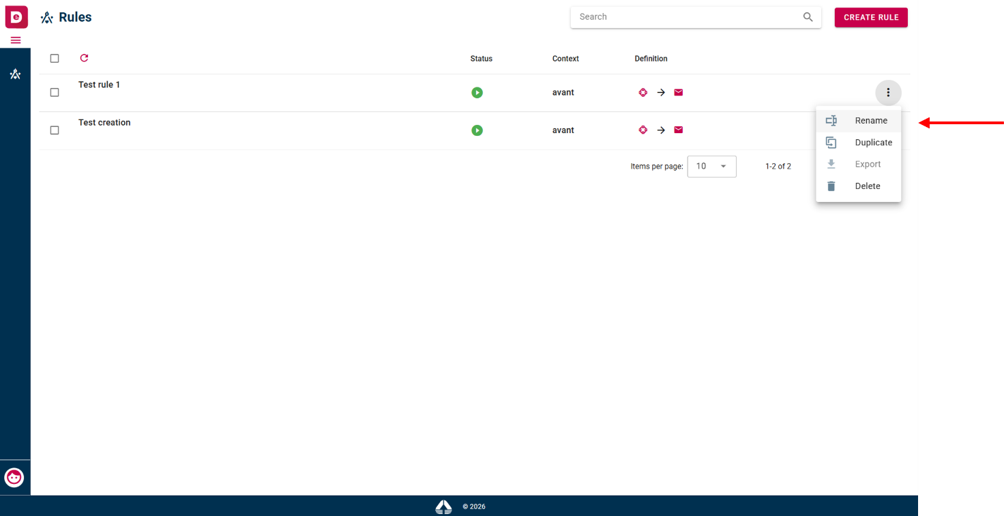 Rename option
The system shows you a modal window with a text field to edit the name.
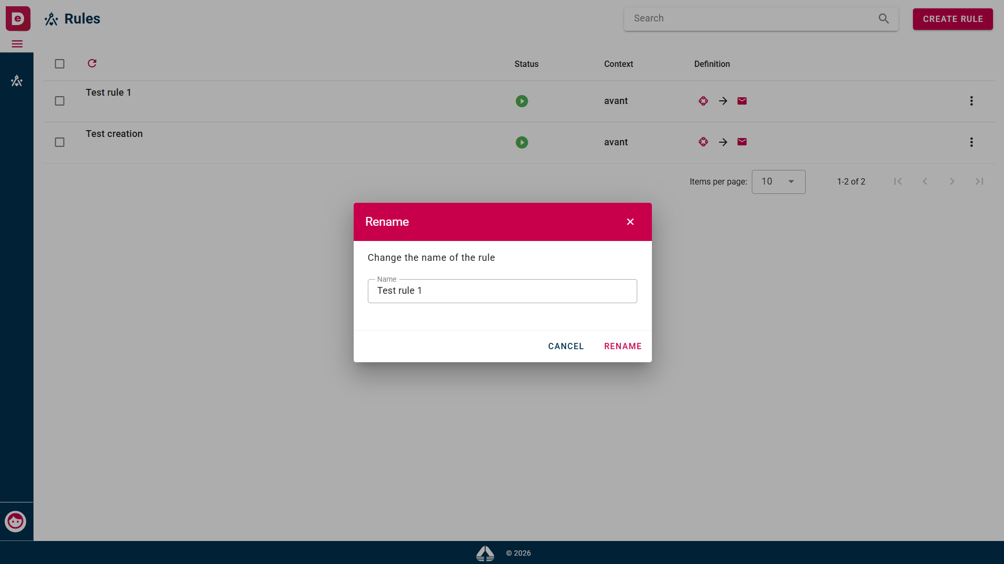 Rename modal window
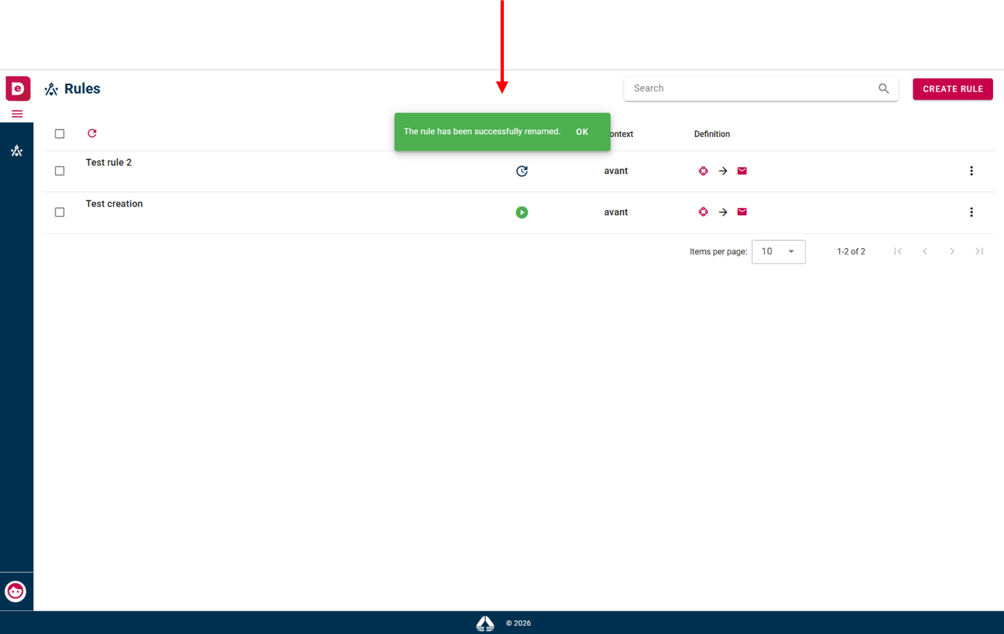 Confirmation message and rules list after successfully renaming
Duplicate rule
This functionality allows you to duplicate rule. To duplicate rule, you have to click on three dot menu and then select “Duplicate” option.
Three dot menu
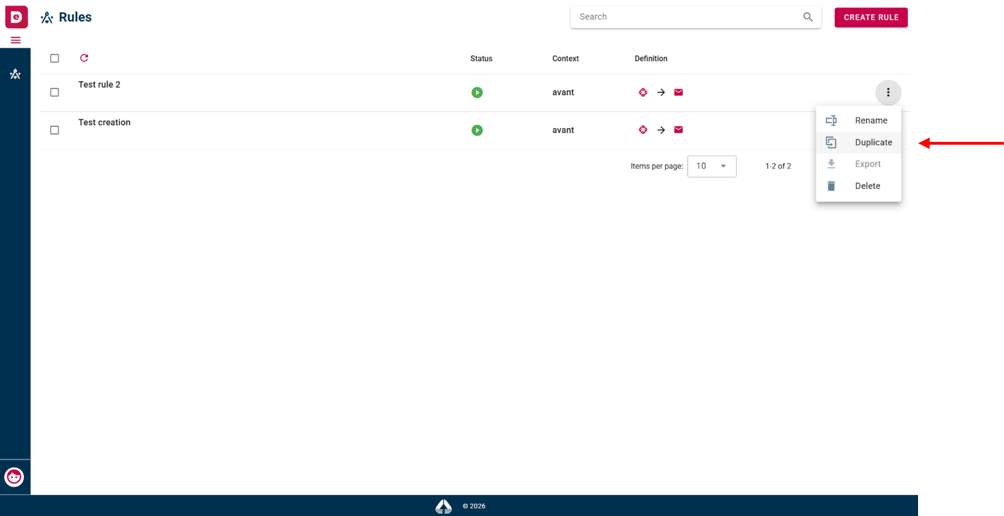 Duplicate option
The system shows you a modal window and if you confirm duplication operation you must navigate through all creation step if you want to edit anything.
Delete rule
This functionality allows you to delete a rule. To delete a single rule, you have to click on three dot menu in the corresponding rule row and then select “Delete” option.
Three dot menu
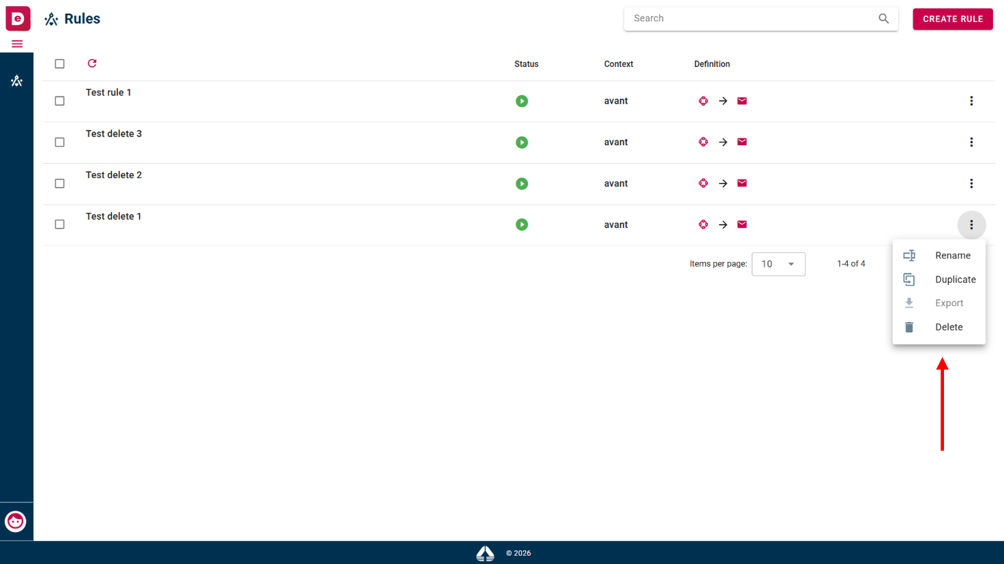 Delete option
The system shows you a modal window and you have to click on “Delete” button.
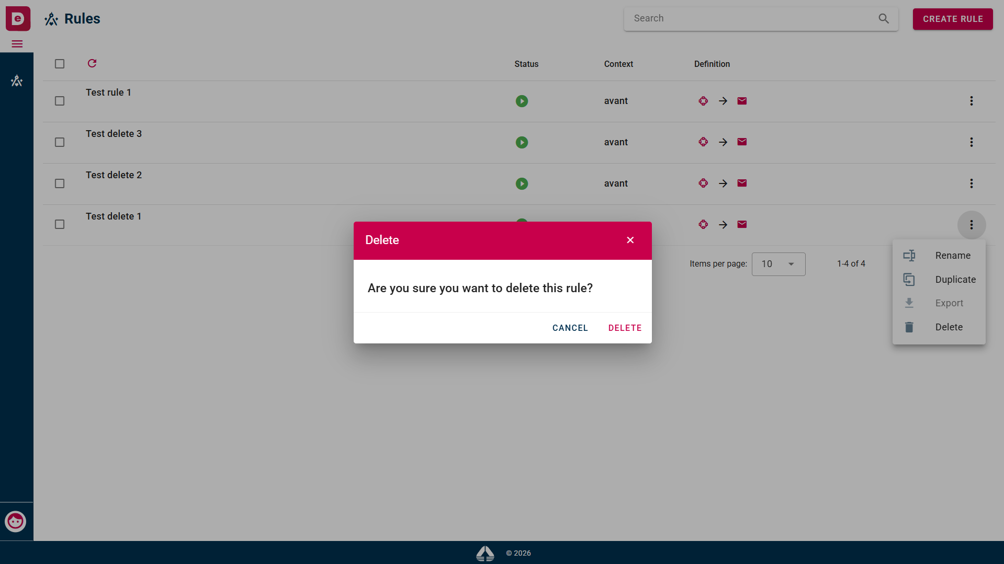 Delete modal window
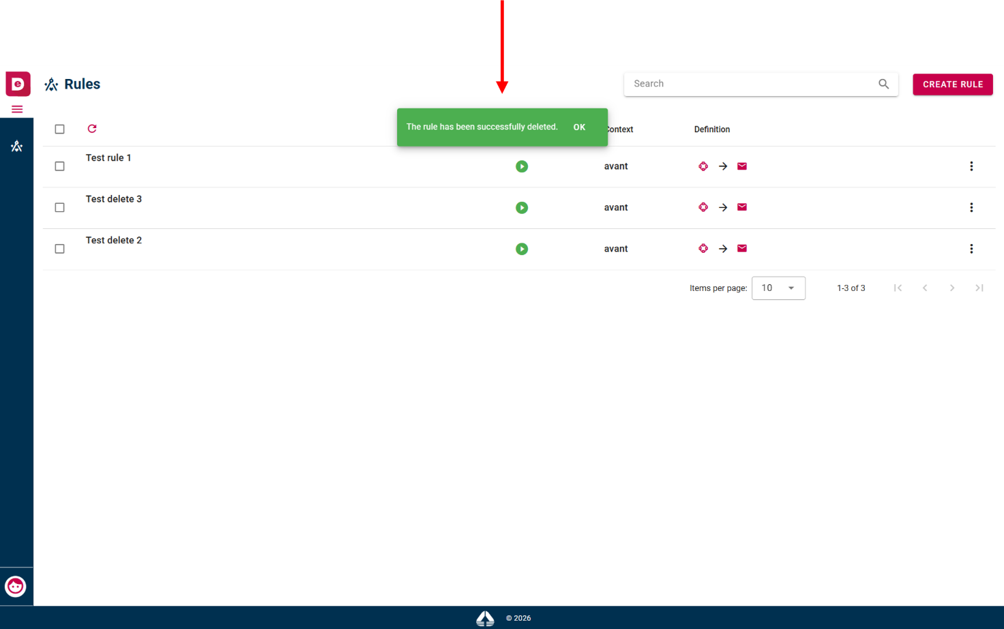 Successfully single deletion message
To delete multiple rules, click on the checkbox in the corresponding rule row and then click on the delete icon on top of the rule list.
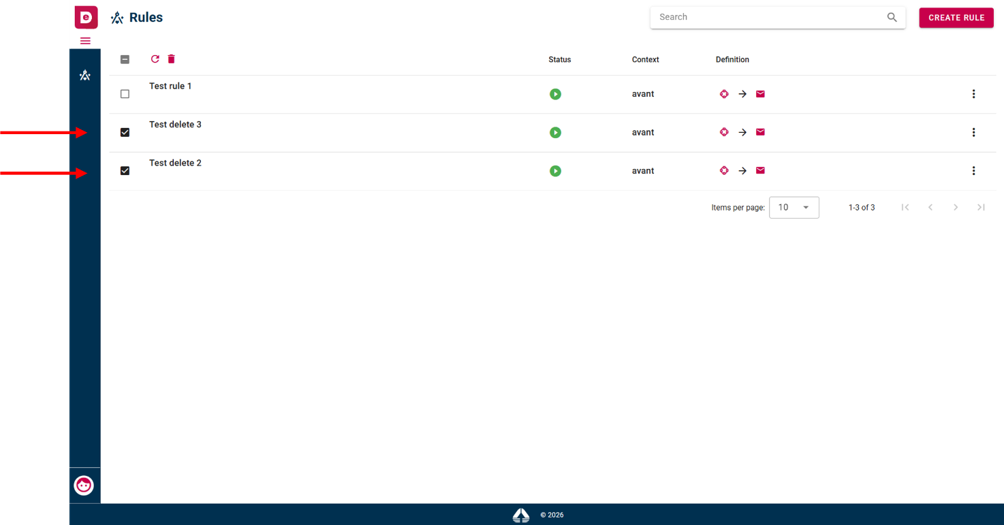 Multiple selection of rules
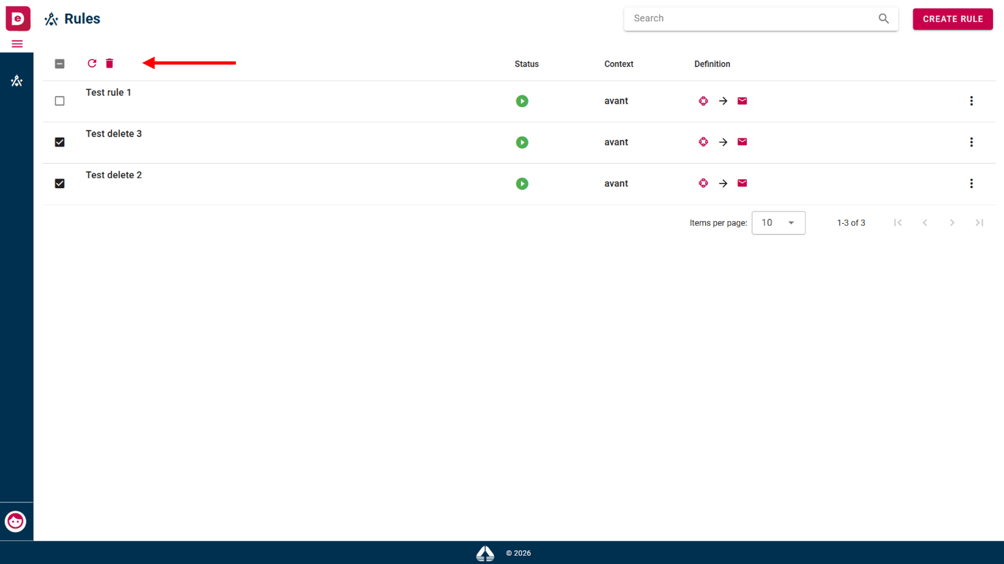 Delete icon
The system shows you a modal window and you have to click on “Delete” button.
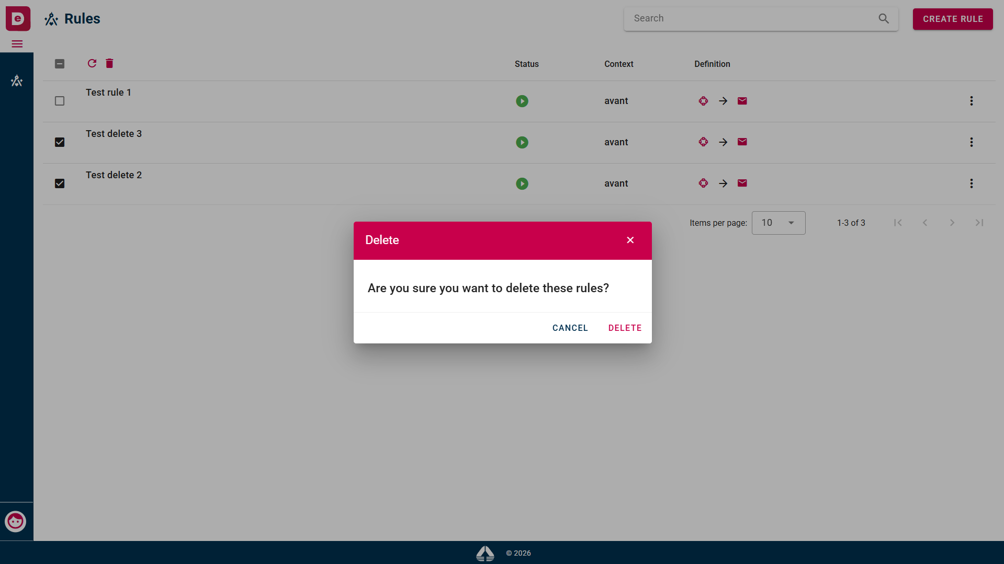 Modal window multiple deletion
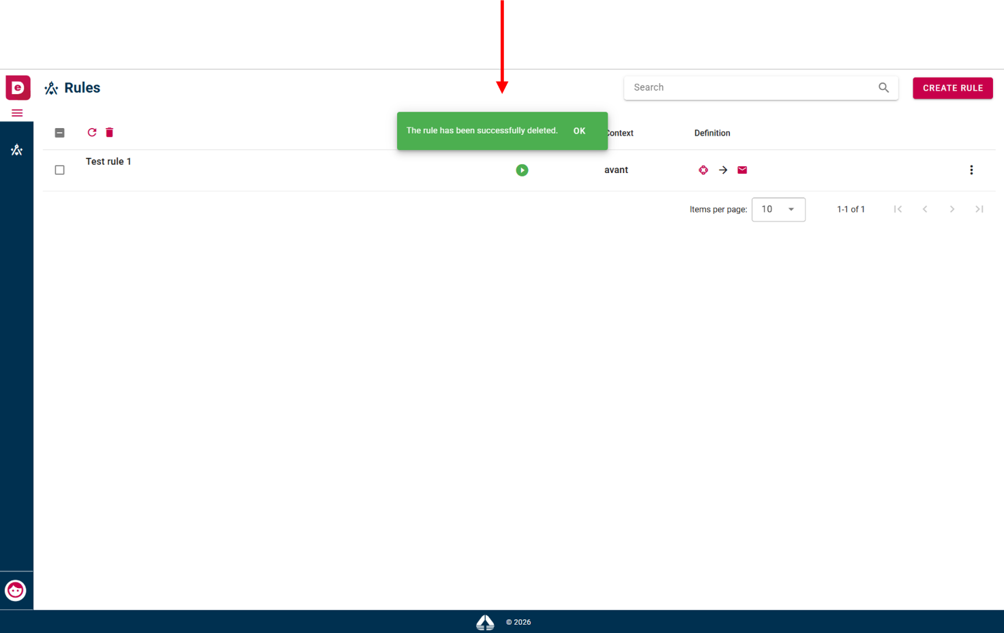 Modal window multiple deletion